

Preset Bezier Curves
What It Does
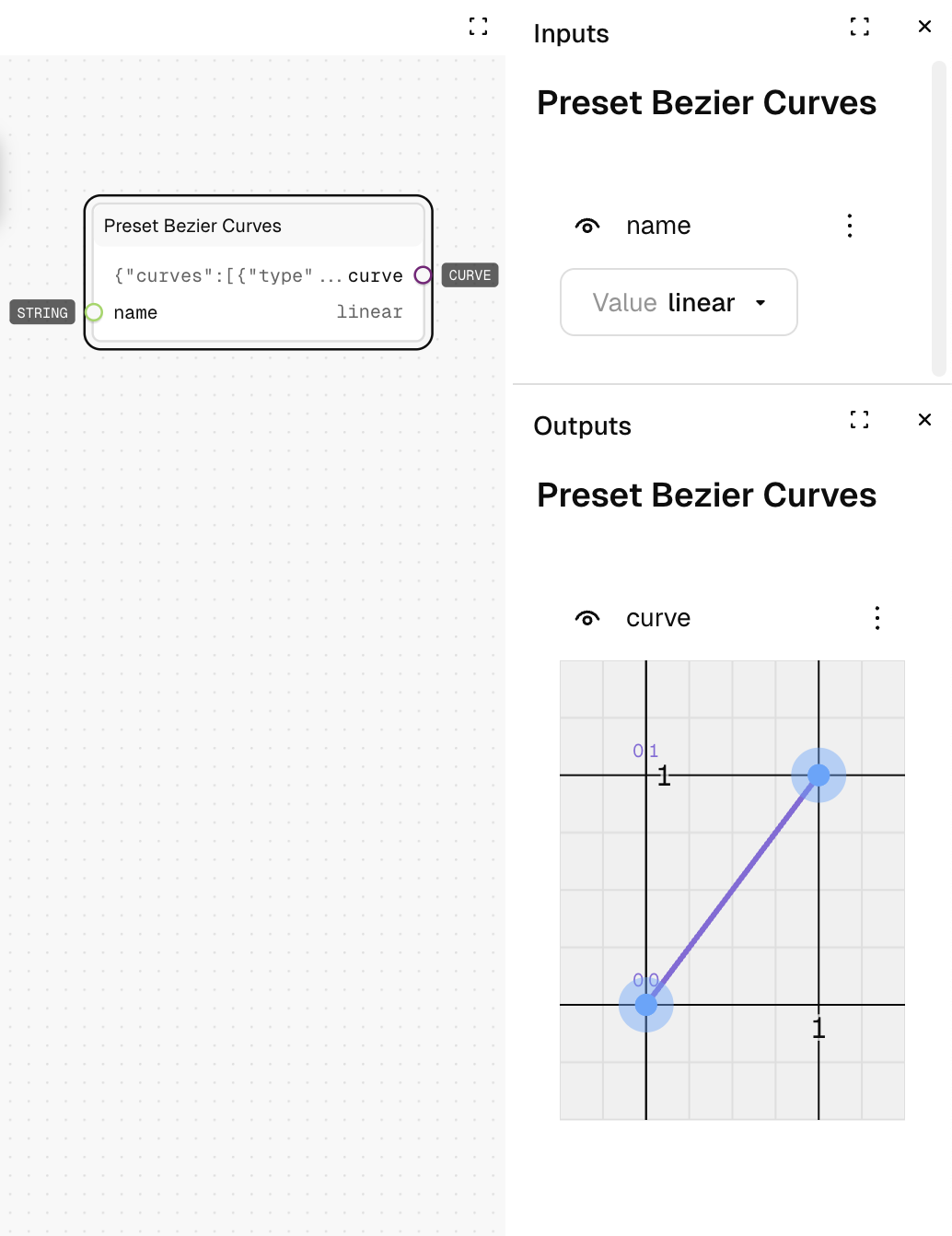
Provides quick access to a library of commonly used Bezier curves for animations and transitions. Instead of manually defining control points, you can select from named presets that represent standard easing functions.
Inputs
| Name | Description | Type | Required |
|---|---|---|---|
| name | The name of the preset curve to use | Text | No |
Outputs
| Name | Description | Type |
|---|---|---|
| curve | The selected Bezier curve | Curve |
How to Use It
- Drag the Preset Bezier Curves node into your graph.
- Select a preset from the "name" dropdown (default is "linear").
- Run the graph—the output will be a Bezier curve with the control points for the selected preset.
- Use this output with other curve nodes like Sample Curve.
Available Presets
- Linear: A straight line with no easing (linear interpolation)
- Ease In: Starts slow, accelerates (variations: Sine, Quad, Cubic, Quart, Quint, Expo, Circ, Back)
- Ease Out: Starts fast, decelerates (variations: Sine, Quad, Cubic, Quart, Quint, Expo, Circ, Back)
- Ease In Out: Starts slow, speeds up in the middle, slows down at the end (variations: Sine, Quad, Cubic, Quart, Quint, Expo, Circ, Back, Elastic)
Tips
- Different easing functions create different visual feels:
- Sine: Gentle, subtle easing
- Quad/Cubic/Quart/Quint: Progressively stronger easing
- Expo: Dramatic, exponential easing
- Circ: Based on circular motion
- Back: Slightly overshoots before settling
- Elastic: Bouncy, spring-like motion
See Also
- Bezier Curve: For creating custom curves when presets aren't sufficient.
- Sample Curve: To evaluate a curve at a specific point.
- Float Curve: For more complex curve definitions.
Use Cases
- UI Animations: Create natural-feeling transitions between states.
- Motion Design: Apply industry-standard easing to movement.
- Data Visualization: Transform linear data into more organic visual representations.