

Create Color
What It Does
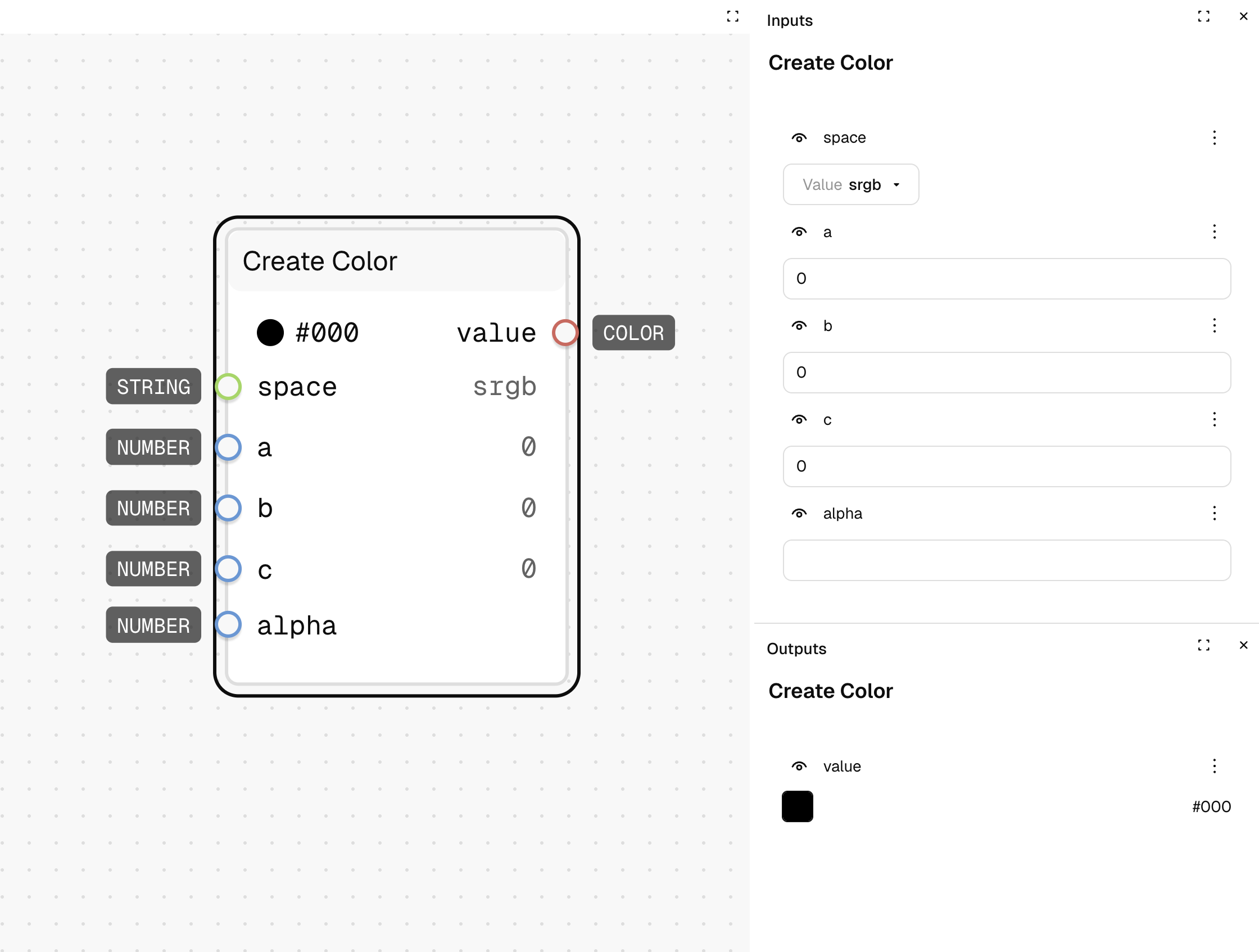
Creates a color from individual channel values in a specified color space. It allows you to build colors from scratch by defining each component separately, perfect for creating systematic color variations.
Inputs
| Name | Description | Type | Required |
|---|---|---|---|
| space | The color space to use (e.g., srgb, hsl, lab) | String | No |
| a | The first channel value (red in RGB, hue in HSL) | Number | No |
| b | The second channel value (green in RGB, saturation in HSL) | Number | No |
| c | The third channel value (blue in RGB, lightness in HSL) | Number | No |
| alpha | The transparency value (0-1) | Number | No |
Outputs
| Name | Description | Type |
|---|---|---|
| value | The created color | Color |
How to Use It
- Drag the Create Color node into your graph.
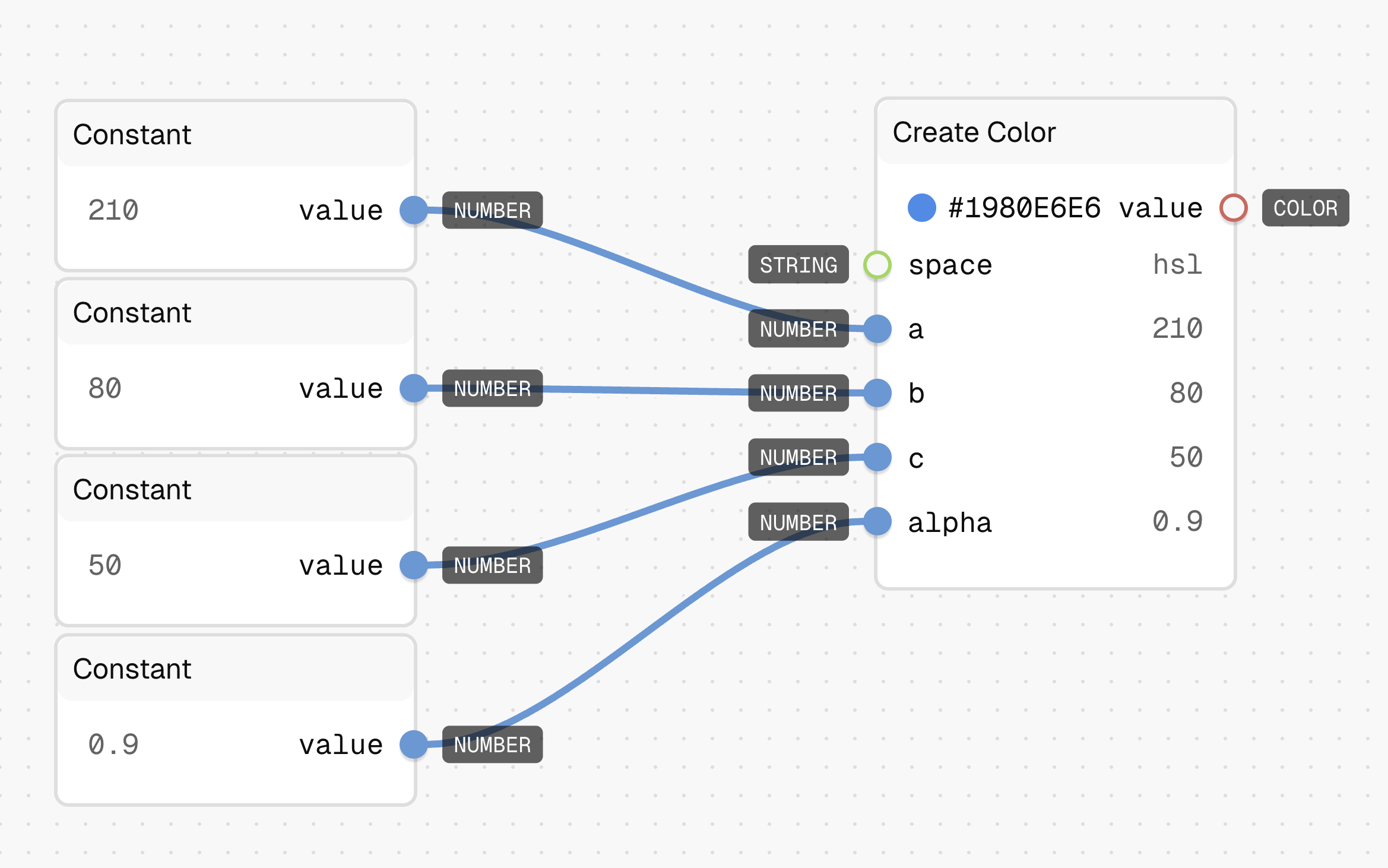
- Choose a color space (e.g., "hsl") for the "space" input.
- Drag four Constant node into your graph. Set the input type to number.
- Connect constant nodes to the a, b, c inputs (e.g., 210 for hue, 80 for saturation, 50 for lightness).
- Optionally connect a value between 0-1 to the "alpha" input for transparency (e.g., 0.5 for 50% transparency).
- The Create Color node outputs a color
#1980E6E6for the above values.
Tips
- Different color spaces require different value ranges: RGB uses 0-255, HSL uses 0-360 for hue and 0-100 for saturation/lightness.
- Try different color spaces to create colors that are easier to adjust systematically.
See Also
- Convert Color: For converting between different color spaces.
- Deconstruct Color: For breaking a color down into its channel values.
Use Cases
- Systematic Color Palettes: Create related colors by varying just one channel value while keeping others constant.
- Accessible Color Alternatives: Generate variations with the same hue but different lightness values to ensure accessibility.
- Brand Color Extensions: Use your brand color as a base and create a full palette by systematically modifying channel values.